

Ever signed in to Xbox and felt your gamertag was stuck in the past?
Maybe it is a name you picked years ago.
Maybe Xbox made one for you, and it has random numbers at the end.
Now you want a fresh name that fits you.
Good news, it is easier than most people think.
Your Xbox username can be changed in a few minutes on a console, a phone, or a PC.
In this guide, you will learn how to find your Xbox gamertag and change it step by step.
You will see what it costs, what stays safe on your account, and how to fix common problems.
You will also get 35 fresh Xbox username ideas, plus tips for picking a name you will still love next year.
Ready to find your new gaming identity? 🎮
Let’s get started.
What Is an Xbox Username (Gamertag)?
Your Xbox username is called a gamertag.
It is the name other players see when you play, chat, or send a friend request.
Think of it as your name tag at a big gaming party. 🎉
It shows up on your Xbox profile, on leaderboards, in party chat, and in lobbies for multiplayer games.
Friends use it to find you.
Teammates use it to invite you.
Strangers use it to guess if you are a chill player or a super serious one.
Here are the basics you should know:
- Your gamertag can have up to 12 characters in the newer gamertag system.
- Letters, numbers, and spaces are the safe bet.
- Names must follow the Xbox Community Standards, so rude or hateful names get blocked.
- If another player already has your name, Xbox adds a number to the end.
That is the whole idea.
It is a simple label, but it follows you across your console, your phone, and your PC.
Xbox Gamertag vs. Microsoft Account Name
Lots of people mix these two up.
Let’s clear it up.
Your Microsoft account is the login you use for Xbox, Outlook, and the Microsoft Store.
Your Microsoft account display name is the first and last name tied to that account.
Your gamertag is the name other players see inside Xbox.
They live in the same account, but they are not the same thing.
Here is a quick way to remember it:
- Gamertag: the name shown in games, party chat, and friends lists
- Microsoft account name: your personal name on emails and Microsoft services
- Sign in email: how you log in, and not a public name
Picture this.
You update your name on your Microsoft account because you got married.
Your gamertag stays exactly the same, because your Microsoft account display name does not change your gamertag.
The reverse is true too.
Changing your gamertag will not rename your email or your account profile.
You can also choose who sees your real name in your Xbox privacy settings, so check that if you like staying a bit mysterious. 🕵️
How to Find Your Xbox Gamertag
Not sure what your gamertag is right now?
No stress.
You can spot it in under a minute.
- On your console: Press the Xbox button, then look at your profile picture and name at the top of the guide.
- In the Xbox mobile app: Open the app and tap your profile picture. Your gamertag sits right under it.
- On Xbox.com: Sign in to your Microsoft account, then select your profile picture. Open your Xbox profile and choose View full profile for more details.
- From a friend’s screen: Ask a friend to open your name in their friends list and read it out.
If you have more than one Microsoft account, check which one you are signed in to.
Many people think their gamertag is missing when they are simply on the wrong account.
How to Change Your Xbox Username
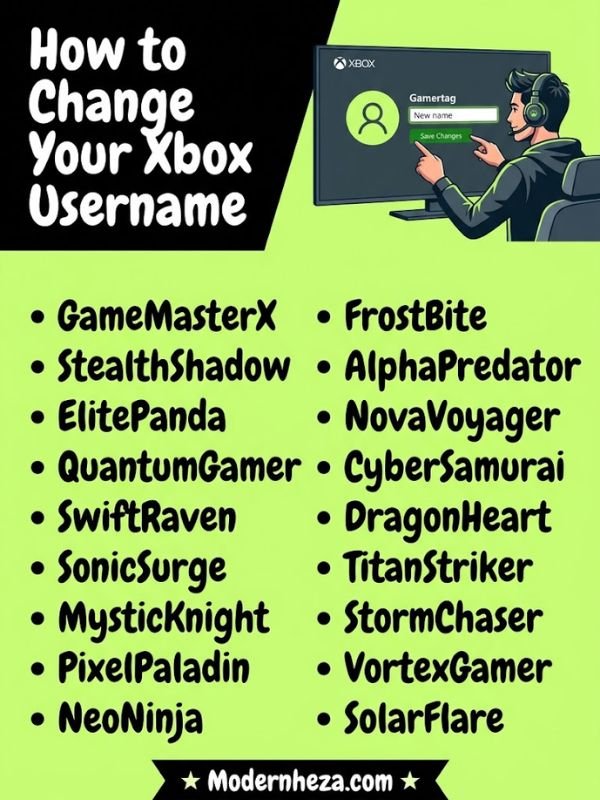
Good news, the steps are close to the same on every device.
You sign in, open your profile, pick the gamertag option, type a name, and confirm.
Before you start, do these quick things:
- Sign in with the Microsoft account you use for Xbox.
- Write down three backup names, in case your first pick is taken.
- Read the price on the screen before you confirm.
Menu names can shift after updates, so if your screen looks a little different, look for words like Customize profile and Gamertag.
How to Change Your Gamertag on Xbox Series X|S
- Press the Xbox button on your controller to open the guide.
- Go to Profile & system, then select your profile.
- Choose My profile, then pick Customize profile.
- Select your current gamertag.
- Enter a new gamertag, or choose one from the suggestions.
- Check gamertag availability.
- Confirm the gamertag change.
Take a second to read the name on the screen before you hit confirm.
A typo can cost you real money after your free change is gone.
How to Change Your Gamertag on Xbox One
The path on Xbox One is a little different, but it is just as quick.
- Press the Xbox button on your controller.
- Go to System, then Settings, then Personalization.
- Select My profile, then Customize profile.
- Select your gamertag, then select it again to type a new one or pick one from the suggested list.
- Follow the prompts to check the name and confirm.
If the name is available, Xbox lets you move on right away.
If not, it offers other choices that are close to what you typed.
How to Change Your Xbox Gamertag on Phone
Your phone is great when your console is across the room or turned off.
- Open the Xbox mobile app and sign in with your Microsoft account.
- Tap your profile picture.
- Open your profile settings and choose Customize profile.
- Tap your gamertag.
- Type a new name and check if it is available.
- Confirm the change.
If you do not see these exact words, look around your profile settings for a gamertag option.
If the app acts weird, update it and try again, or use Xbox.com in your phone browser.
How to Change Your Xbox Username on PC or Online
Changing your name through a browser is handy because the screen is big and typing is easy.
- Go to Xbox.com and sign in to your Microsoft account.
- Select your profile picture.
- Open Customize profile.
- Choose Change gamertag.
- Enter a new gamertag and check availability.
- Confirm the change.
You can also use the Xbox app on Windows if you prefer an app over a website.
Once you finish, check the final gamertag appearance.
Look at spelling, capital letters, spaces, and any number added at the end.
Does It Cost Money to Change Your Xbox Gamertag?
Your first gamertag change is free.
After that, Xbox charges a gamertag change fee each time.
In the United States, the fee has been listed at $9.99.
Other countries use their own local price, and prices can change over time.
So the best move is to read the price on your confirmation screen before you agree to anything.
Here is how to avoid wasting your free change:
- Say the name out loud, so you know it sounds right.
- Type it into the availability checker a few times with small tweaks.
- Make sure you are happy with how it looks next to other names on a friends list.
- Sleep on it if you can. A name that feels perfect at midnight can feel silly the next morning. 😅
If your free change does not show up and you are sure you never changed your name before, contact Xbox Support and explain what you see on the screen.
Xbox Username Ideas

Need a spark?
Here are 35 fresh names, grouped by vibe.
Every name is 12 characters or fewer, so it fits the limit.
Names can be taken by someone else, so check availability first.
If one is taken, Xbox may add a number, or you can twist it with a new word.
Cool Xbox Usernames
These cool Xbox names sound sharp, fast, and a little mysterious.
- FrostByte: icy and quick, great for shooters
- IronEcho: strong sound, easy to say in voice chat
- NeonDrift: perfect for racing games
- ShadowKite: calm and stealthy
- SolarVex: bright with a touch of attitude
- CobaltRush: bold and energetic
- GhostCircuit: techy and spooky at the same time
Tip: pair one hard sound word with one smooth sound word.
It makes the name feel balanced.
Funny Xbox Usernames
Humor works best when it is short and easy to read.
These funny Xbox names are made to get a grin from your squad. 😂
- SirLagsALot: for the player who blames the internet
- PotatoPatrol: a team of one, guarding the snacks
- NoScopeNana: sweet and sneaky
- WaffleTank: soft on the outside, heavy on the damage
- OopsAllBots: great if your teammates play a little wild
- BrbSnackRun: honest and relatable
- CouchCaptain: the leader of the living room
Tip: jokes that fit your play style land better than random silly words.
Cute Xbox Usernames
Cute names are soft, sweet, and easy on the eyes.
Try these cute Xbox names if you like a cozy feel. 🌸
- PuddingPaws: a bouncy, friendly name
- BunnyBlush: gentle and sweet
- MochiMoon: round, soft, and dreamy
- PeachPixel: fruity with a gaming twist
- CocoaCloud: warm like a hot drink
- SoftSprout: fresh and growing
- TinyTulip: small, pretty, and simple
Tip: cute names look best with no extra numbers.
If Xbox adds a suffix, try swapping one word instead.
Aesthetic Xbox Usernames
Aesthetic names paint a mood.
They feel calm, dreamy, or moody, like a playlist for a late night session. 🌙
These aesthetic Xbox names work well on a clean profile.
- VelvetDusk: soft and glowing
- PastelOrbit: light colors and floating vibes
- MoonlitJade: quiet and elegant
- AmberHaze: warm sunset energy
- LilacTide: gentle and flowing
- SilkSunrise: smooth morning feeling
- QuietCoral: calm and a bit rare
Tip: choose two words that make a picture in your head.
If you can see it, other players can too.
Unique Xbox Usernames
Want something nobody else is likely to have?
Mix two words that do not usually go together.
These unique Xbox usernames are built to stand out in a long friends list.
- ZephyrQuill: breezy and writerly
- OrbitMango: space meets snack time
- TumbleFjord: a clumsy explorer in a cold land
- PixelHeron: a calm bird with a gamer twist
- CinderLark: smoky and cheerful at once
- NovaPickle: a star with a sour streak
- WispOtter: tiny, playful, and light
Tip: say your favorite animal, a color, and a place, then mash two of them together.
You might land on a name no one has touched.
How to Choose a Good Xbox Username
A good gamertag is easy to say, easy to spell, and fun to wear for years.
Here is a simple checklist:
- Keep it short. Shorter names are easier for friends to type into search.
- Make it easy to say. If you cannot say it in voice chat without stumbling, skip it.
- Skip personal info. Do not use your full name, school, birthday, phone number, or address.
- Avoid tricky symbols. Names full of random letters and numbers are hard to remember.
- Think ahead. A name that fits you today should still feel okay when you are older.
Want to test a name before you commit?
Try this quick test:
- Type it with a controller and see if it feels annoying.
- Ask a friend to read it out loud.
- Search for it with the availability checker and see what comes up.
- Look at how it fits in a friends list next to other names.
Personalizing is the fun part.
Take something you love, like a game genre, a food, or a favorite place, and mix it with a color or an animal.
A name like x_xGamerBoy2009_x tells people nothing about you.
A name built from your own interests feels like you.
If you want the same name across other apps, check that it is open there too.
One matching name makes it easier for friends to find you everywhere.
How to Get a 4-Letter Xbox Username
Short names are popular.
Almost every real four letter word has been used already.
The newer suffix system helps, because Xbox can add a number when a name is taken.
That means you may still be able to use a four letter name, but it may come with digits at the end.
Here are ways to improve your odds without paying for extra changes:
- Make up a word. Names like Zeko, Quib, or Nyxo are not real words, so they are more likely to be open.
- Use less common letters like Z, Q, or X.
- Swap a vowel in a real word to make it new.
- Try a few options in the availability checker before you confirm anything.
Checking a name does not charge you.
Only confirming the change does.
A quick warning.
If anyone offers to sell you a short gamertag, walk away.
It is a common trick, and it can put your Microsoft account at risk.
Why Does My Xbox Gamertag Have Numbers After It?
Seeing a # and a few digits after your name can feel strange.
It is called a gamertag suffix.
On other platforms, a similar number is sometimes called a discriminator.
Here is why it happens:
- Lots of players want the same names.
- Xbox lets more than one person use the same base name.
- To keep every full gamertag unique, Xbox adds a number to the end.
When you first sign up, Xbox may also create a name for you, and that name can come with numbers.
Older gamertags made before the suffix system do not have one.
The suffix usually shows in a lighter style, so your name stays the star.
Can you get rid of it?
If your base name is open, you can pick it without a number.
If it is taken, you can try a different base name or a small twist.
What to Do If Your Xbox Username Is Already Taken
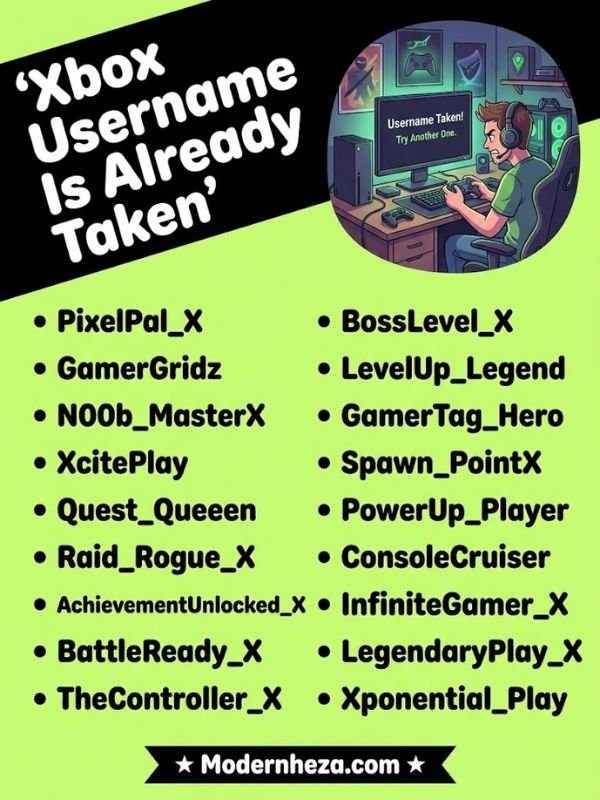
It happens to everyone.
You type your dream name, and Xbox says someone else has it.
Do not panic.
Try these ideas:
- Add a short word at the start or the end, like a color or an animal.
- Change one word for a synonym.
- Swap a letter for a similar sound.
- Try a different spelling that is still easy to read.
- Look at the gamertag alternatives that Xbox suggests, because some are surprisingly good.
- Accept a suffix number if you love the name and can live with the digits.
Try not to turn your name into a pile of symbols.
If friends cannot type it, they will not find you.
Keep the name you love, and just nudge it until it fits.
What Happens When You Change Your Xbox Gamertag?
Short answer: your account stays the same.
Only your name changes.
Your games, your progress, and your friends all stay put.
Here are the details.
Will You Lose Your Games, Gamerscore, or Achievements?
No, you will not.
Your games, Gamerscore, and achievements belong to your Microsoft account, not to your gamertag.
Your digital purchases and subscriptions stay with the account too.
So you are only changing the label, and the stuff behind it stays safe.
Sometimes a game or a website may take a little while to show your new name.
That is normal, and it usually fixes itself after a refresh or a new sign in.
Will Your Friends See Your New Gamertag?
Yes.
Your friends list, party chat, and profile will show your new name once the change goes through.
Some friends may not know it is you at first.
Send a quick message, or post in your group chat, so nobody thinks you vanished. 👋
If a friend still sees the old name, ask them to restart their Xbox or refresh the app.
Can You Change Your Gamertag Back Later?
You can, but it is not guaranteed to be easy or free.
After your free change is used, another change normally comes with a fee.
Also, your old name may be taken by someone else after you let it go.
The confirmation screen shows the price and whether a name is available.
So treat each change like a real decision, and pick a name you can live with.
Common Xbox Gamertag Problems and How to Fix Them
Sometimes things do not go the way you planned.
Here are the common snags and what to try.
Xbox Won’t Let You Change Your Gamertag
Here are the usual reasons:
- You are signed in to the wrong Microsoft account.
- The account belongs to a child, and a parent needs to approve changes in family settings.
- Your free change is used, and Xbox needs a payment method for the fee.
- The name breaks the Xbox Community Standards or is not available.
- You recently changed your security info, and Xbox is asking you to wait.
Try these steps:
- Check which account you are signed in to.
- Try a different name.
- Use Xbox.com instead of your console.
- Contact Xbox Support if the screen shows an error you cannot fix.
Your New Gamertag Still Shows the Old Name
This is usually a refresh problem.
Try these quick fixes:
- Restart your Xbox to refresh account information.
- Sign out and sign back in.
- Close and reopen the Xbox app.
- Wait a little while and check again.
Some games and websites update later than others, so give them time.
Gamertag Changes Are Not Working in the Xbox App
If the app will not let you finish, try this:
- Update the Xbox app to the latest version.
- Sign out, then sign back in.
- Restart your phone or PC.
- Try Xbox.com in a browser instead.
If the website works and the app does not, the problem is likely the app and not your account.
How to Check Whether Xbox Services Are Working
Sometimes the problem is not on your end at all.
Check the status page on the Xbox Support site to see if Xbox services are running normally.
If something is down, wait and try again later.
You can also test another device or network to see if the problem follows you.
If everything looks fine and the problem stays, contact Xbox Support with a short note about what you tried.
Frequently Asked Questions About Xbox Usernames
What Is an Xbox Username Called?
An Xbox username is called a gamertag. It is the name other players see on your Xbox profile, in friends lists, and in multiplayer games.
How Do I Change My Xbox Gamertag?
Open Customize profile on your console, the Xbox app, or Xbox.com, select your gamertag, enter a new one, check availability, and confirm the change.
Can I Change My Xbox Gamertag Online for Free?
Yes, but only once. Your first change on Xbox.com is free, and later changes cost a fee that Xbox shows before you confirm.
Does Changing My Microsoft Account Name Change My Xbox Gamertag?
No. Your Microsoft account display name and gamertag are separate, so editing one does not update the other. Use your Xbox profile settings.
Can I Choose Any Username I Want on Xbox?
Mostly yes. Pick up to 12 characters, follow the Xbox Community Standards, and expect a number to be added if someone already uses the name.
Can I Use the Same Gamertag as Someone Else?
The name can match, but Xbox adds a number so every full gamertag stays unique. You cannot have the exact same name and number.
Is an Xbox Gamertag the Same as an Xbox App Username?
Yes. The Xbox app shows your gamertag as your username, so the name on your phone, console, and Xbox.com is the same.
Time to Pick Your New Gamertag
Your Xbox username is more than a label.
It is your gaming identity, and you can change it in a few taps on a console, phone, or PC.
Your first gamertag change is free, and later changes cost a fee, so plan your name before you confirm.
Your games, Gamerscore, and achievements stay safe because they belong to your Microsoft account.
You also learned how to find your gamertag, why numbers show up after a name, and what to try when a name is taken.
You now have 35 name ideas to spark your own.
Choose something short, easy to say, and free of personal details.
If a change does not show up, restart your Xbox, sign in again, and check Xbox services.
Which name are you picking?
Drop it in the comments, and share this guide with a friend who needs a fresh start.